

- Contents
- Index
- Search

Show results that include all search words
Setting up MYOB EXO Business for Job Costing
The Job Costing module relies on some settings inside MYOB EXO Business for its initial installation and setup. Some changes to the EXO Business Configurator are therefore required before installing Job Costing.
Set up Stock Integration
MYOB recommends using the Periodic stock to GL method, rather than Perpetual stock, as this simplifies the system significantly.
The General Ledger Integration option is set in the Business Essentials > General Ledger section of the EXO Business Configurator. An MYOB EXO Business partner should assist in this part of the configuration.
Set up WIP Stock Location(s)
One or more stock locations should be designated as Work In Progress locations.
To set up a Work In Progress stock location:
-
Open the EXO Business Configurator application (Exocfg.exe) and select the Admin tab. The Business Admin menu appears on the left hand side.
-
Select Stock > Stock Locations from the Business Admin menu. The Stock Locations screen is displayed.
-
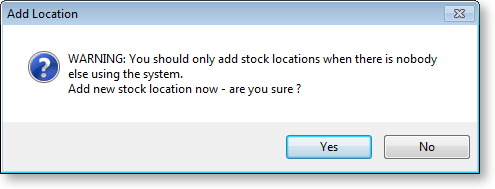
If no unused locations are available, click the New button to add a new location. The following warning message is displayed:
-
Click Yes. A new location is added to the list.
-
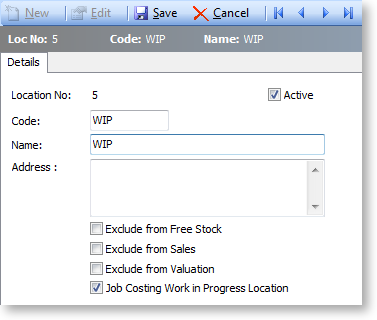
Select the unused location and double-click. The Details tab is displayed.
-
Use the following table to complete the fields on the page.
Field
Description
Location No
The location number. Automatically assigned.
Code
The code related to this location, e.g. ‘WIP’.
Name
The name of the location, e.g. ‘Work In Progress’.
Exclude from Free Stock
Select if this location is not to be referenced when computing free stock. In this case of WIP this option should be enabled.
Exclude from Sales
Select if this location is to be excluded from sales screens. Do not allow sales via Sales Orders or normal debtors invoicing from this location. This option should be disabled, so that Debtor invoicing is possible from Job Costing.
Exclude from Valuation
This setting allows stock valuation reports to be written to specifically exclude the WIP location. Normally this option is enabled for work in progress because its value should be taken from Job Costing itself, including the value of labour expended and unbilled subcontractors charges.
Active
Enable this option to ensure that the location is active; otherwise it will not appear in any drop down selection lists on transaction screens.
Job Costing Work in Progress Location
This option must be enabled, so that the location is designated as a WIP location.
-
Click the Save button. The new WIP stock location will now be created and added to the location list.
You now need to instruct Job Costing to use a WIP location.
-
Still in the EXO Business Configurator application, select the Essential tab. The Business Essentials menu list appears on the left.
-
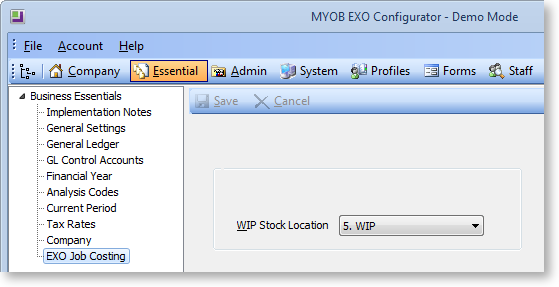
Choose EXO Job Costing.
-
Select a location for the WIP Stock location property. Only locations that have the Job Costing Work in Progress Location option enabled are available for selection.
Set up Work in Progress Control Accounts
General Ledger accounts should be specified for the Work in Progress GL Control Accounts.
To set up GL Control Accounts:
-
Open the EXO Business Configurator application and select the Essential tab.
-
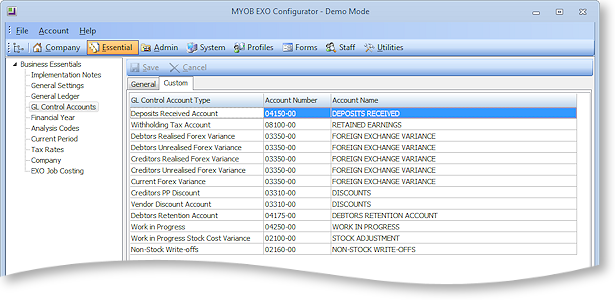
Select GL Control Accounts from the Business Essentials menu. The GL Control Accounts screen is displayed.
-
Go to the Custom tab and double-click on the Work in Progress Control Account. The General Ledger Account Search window is displayed.
-
Select a GL account, then click Save & Close.
-
Repeat steps 3 and 4 for the Work in Progress Stock Cost Variance Control Account.